

your ritual, built for today.
gribb daily wellness app
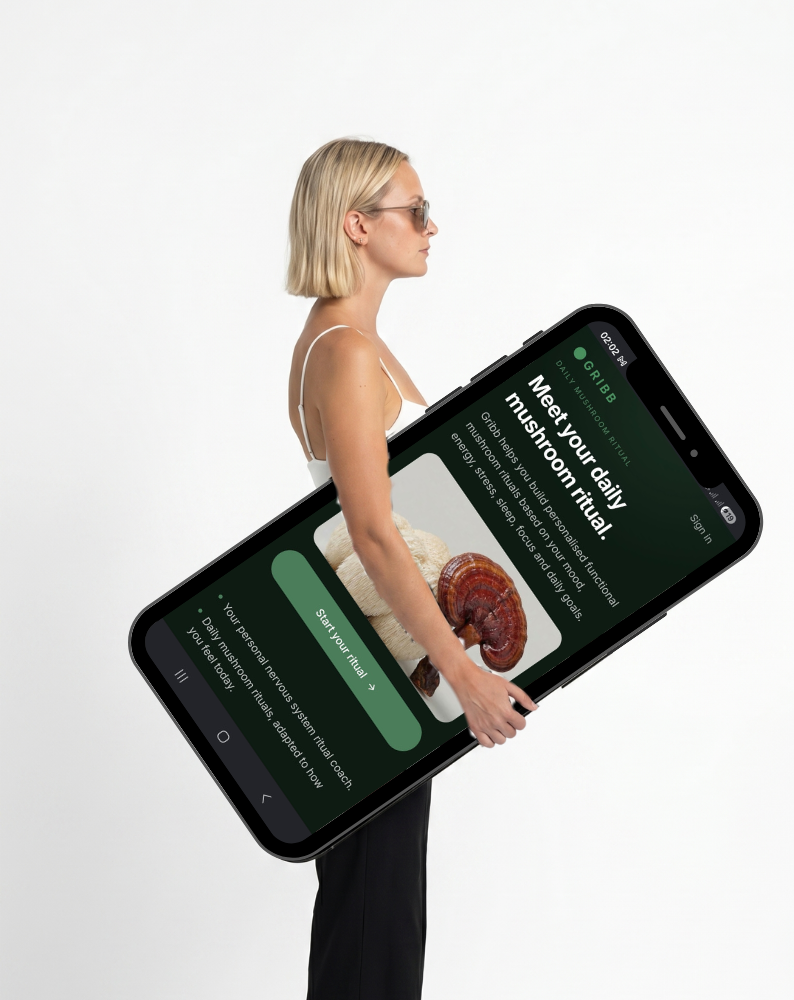
GRIBB checks in with your body every day — sleep, energy, stress, mood, focus — and generates a functional mushroom ritual matched to exactly how you feel right now.
how it works
A ritual engine, not a tracker.
Most wellness apps give you the same plan regardless of how you feel. GRIBB checks in with your body every day and generates a ritual matched to that specific day's signals. Every ritual is different because every day is different.
Daily check-in
30 seconds. Sleep quality, energy, stress, mood, focus. That's it. GRIBB does the rest.
Ritual engine
Your check-in signals are translated into one personalised ritual — the right mushroom, the right dose, the right moment. Not a suggestion. A protocol built for today.
Product matching
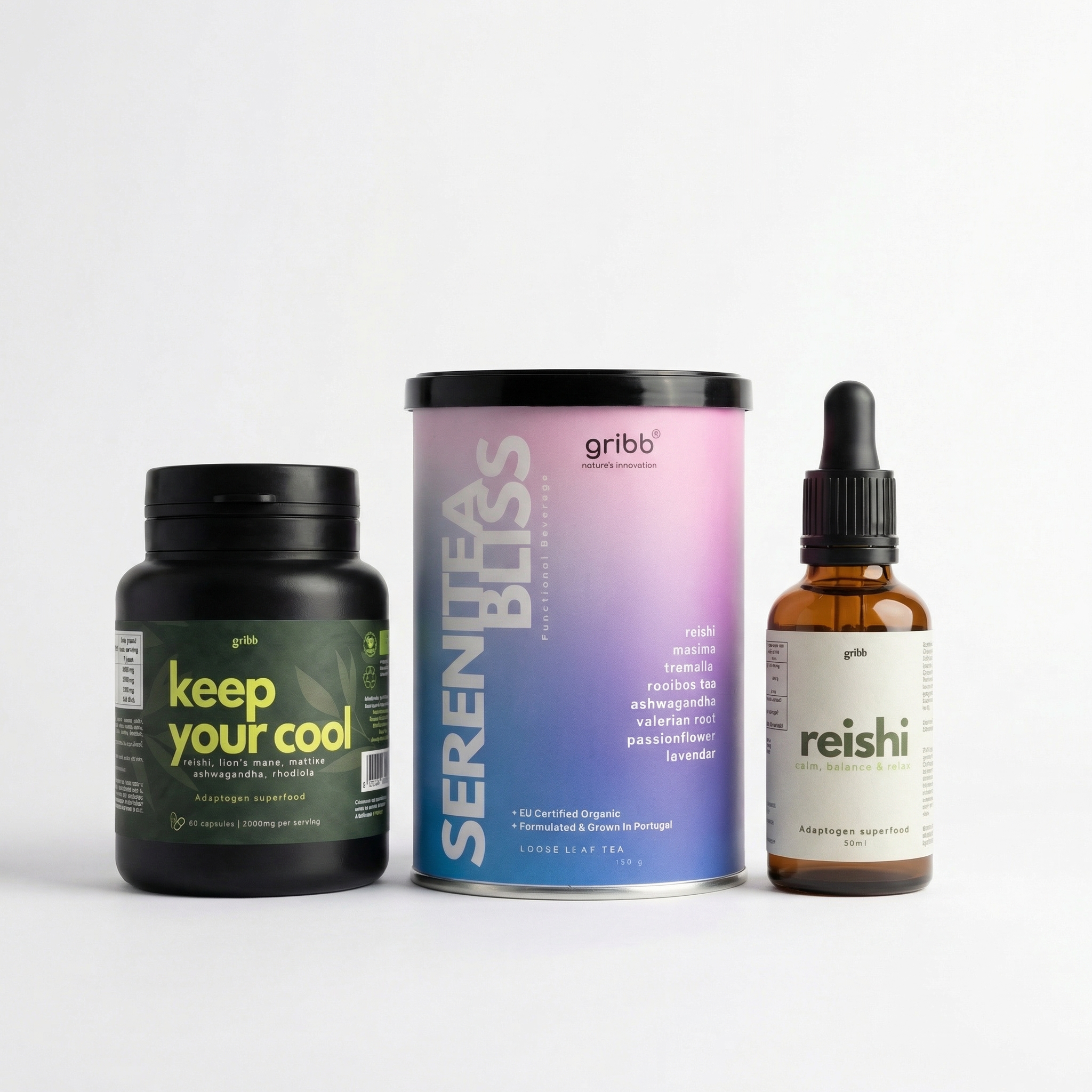
Mapped to the Gribb mushrooms and blends you already own. Or any functional mushroom supplements you use. The ritual engine works the same way regardless of brand.
Insights over time
GRIBB builds a picture of your body's patterns over time — the signals you've been sending yourself, finally visible. Ritual+ members get a full monthly insights report.
Ask Gribb
Ritual+ includes Ask Gribb — a science-backed chat for functional mushroom questions, protocol guidance, and personalised recommendations based on your check-in history.
pricing
choose your plan
FREE — €0
Begin free. No surprise charges.
Forever. No card needed.
✓ Onboarding & daily check-in
✓ One personalised ritual a day
✓ Product library
✓ 7 ritual history entries
✓ Journal & body signals
✓ Mushroom + product matching
RITUAL+ — €6.99 / month
(or €59 / year — save €24.88)
✓ Everything in Free
✓ Unlimited rituals & regenerate
✓ Ask Gribb chat
✓ Full protocol library (21 protocols)
✓ Full audio library
✓ Insights, full history & monthly report

iPhone (iOS)
install guide
Requires iPhone with iOS 16.4 or later. Must use Safari.
1. Open Safari on your iPhone — not Chrome, not Firefox. Safari only.
2. Go to app.gribbworld.com and wait for the app to fully load.
3. Tap the Share button at the bottom of the screen — the square with an arrow pointing up.
4. Scroll down in the share menu and tap "Add to Home Screen."
5. Tap "Add" in the top right corner.
6. GRIBB appears on your home screen. Tap it — it opens full screen, no browser bar.
install guide
android
Any Android phone. Must use Chrome.
1. Open Chrome on your Android phone.
2. Go to app.gribbworld.com and wait for the app to fully load.
3. If a banner appears at the bottom saying "Add GRIBB to Home Screen" — tap it.
4. If no banner appears, tap the three dots menu in the top right corner.
5. Tap "Add to Home Screen" or "Install app."
6. Tap "Add" or "Install" to confirm.
7. GRIBB appears on your home screen. Tap it — it opens full screen, no browser bar.
Your data is yours. All check-ins, rituals, shelf, and history sync automatically. If you sign back in on a new device or browser, everything restores. If Gribb later releases a native App Store app, all your data transfers automatically — nothing is lost.
"I was tired of wellness apps that are only half-supportive. GRIBB gives you everything in one place — specific audios for the specific time of day you need them, easy access to articles, rituals that actually adapt to how you feel. This is the app I use daily, even for support beyond Gribb mushrooms."
Cláudia, CEO & Founder
What to expect + troubleshooting
What to expect once installed
→ Works like a native app once installed
→ Offline access for existing content
→ Audio plays while the app is open
→ On Android: audio continues in the background
→ On iPhone: audio plays while app is in foreground
→ Sign in with email only — no password, ever
→ All data syncs automatically
Having trouble?
→ iPhone: use Safari, not Chrome or another browser
→ Android: use Chrome, not Samsung Internet or Firefox
→ App not loading? Check your connection and refresh
→ No "Add to Home Screen"? Scroll down in the share menu on iPhone, or check the three dots menu on Android
Have questions?
Frequently Asked Questions
Yes. GRIBB is free to download and use. Your daily ritual, check-in, and core features are free forever. Ritual+ (€6.99/month or €59/year) unlocks the full audio library, all 21 protocols, Ask Gribb, and monthly insights reports.
Just enter your email address. We'll send you a secure verification code. Your data is stored securely and restored automatically when you sign back in.
No. GRIBB works with any functional mushroom supplements you already own. The app recommends Gribb World products but you can use any brand you prefer — the ritual engine works the same way.
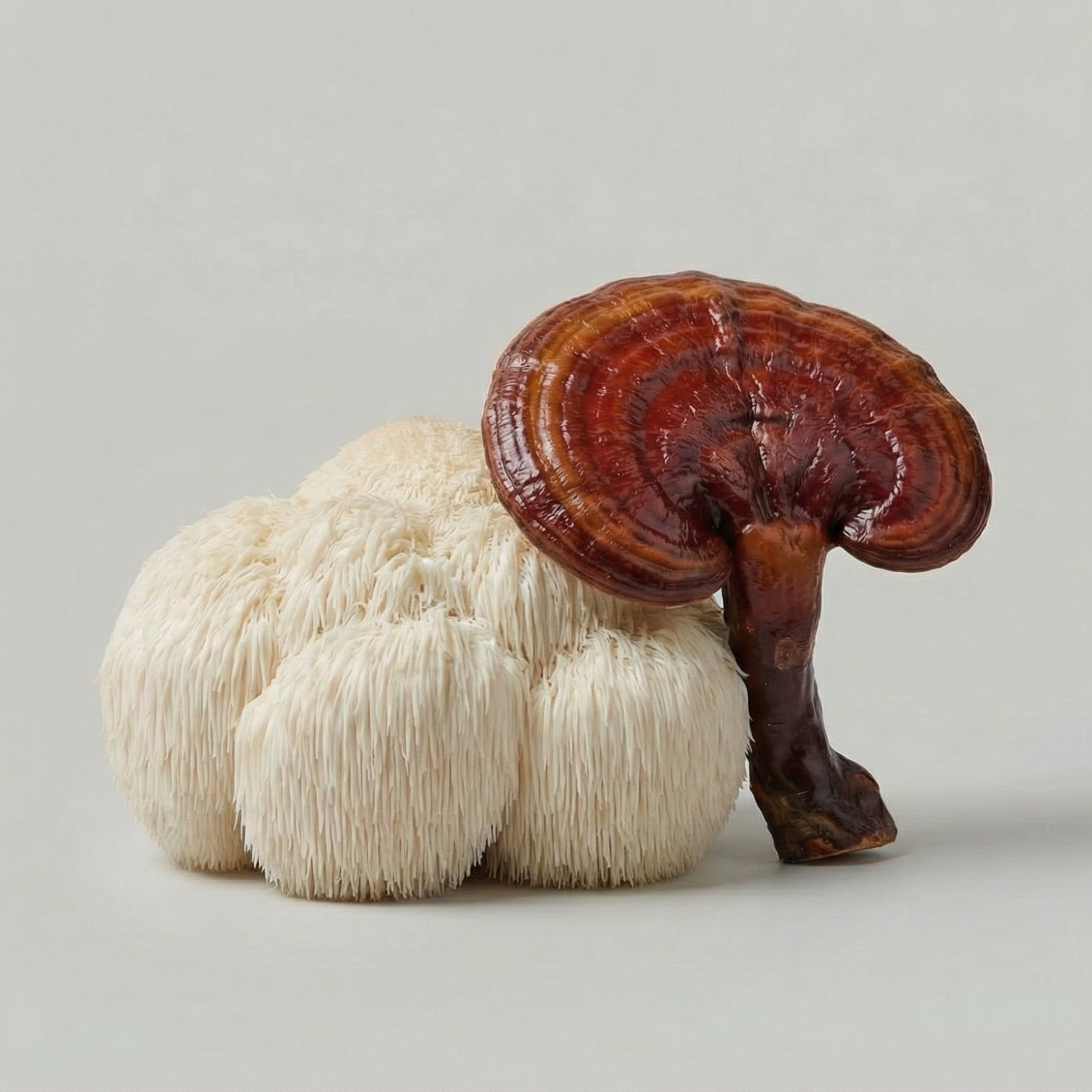
Functional mushrooms like Lion's Mane, Reishi, Cordyceps, Chaga, and Tremella are used for their adaptogenic and wellness-supporting properties — not for psychedelic effects. They are legal, widely available supplements used to support focus, sleep, energy, immunity, and stress resilience.
Most wellness apps give you the same plan regardless of how you feel. GRIBB checks in with your body every day and generates a ritual matched to that specific day's signals — your sleep quality, stress, energy, mood, and focus. Every ritual is different because every day is different.
No. GRIBB is a wellness education and lifestyle support tool. It is not medical advice and is not intended to diagnose, treat, cure, or prevent any disease. If you are pregnant, breastfeeding, taking medication, or managing a health condition, speak with a qualified healthcare professional before using any supplements.